Match the task
Prioritize the indicators that matter for your meeting, playback or game.
QUICKQ · CONNECTION IN CONTEXT
Bring your device, route and next task into the same decision, whether you are joining a meeting or settling in to watch.
Check your system
Prepare account access
Pick a suitable route
Review the experience
ROUTE PERSPECTIVE
Route location is only part of the picture. Your local network, target service and time of day also matter. Start with automatic selection, then compare actual responsiveness.
Compatibility
WATCH WITH CONTEXT
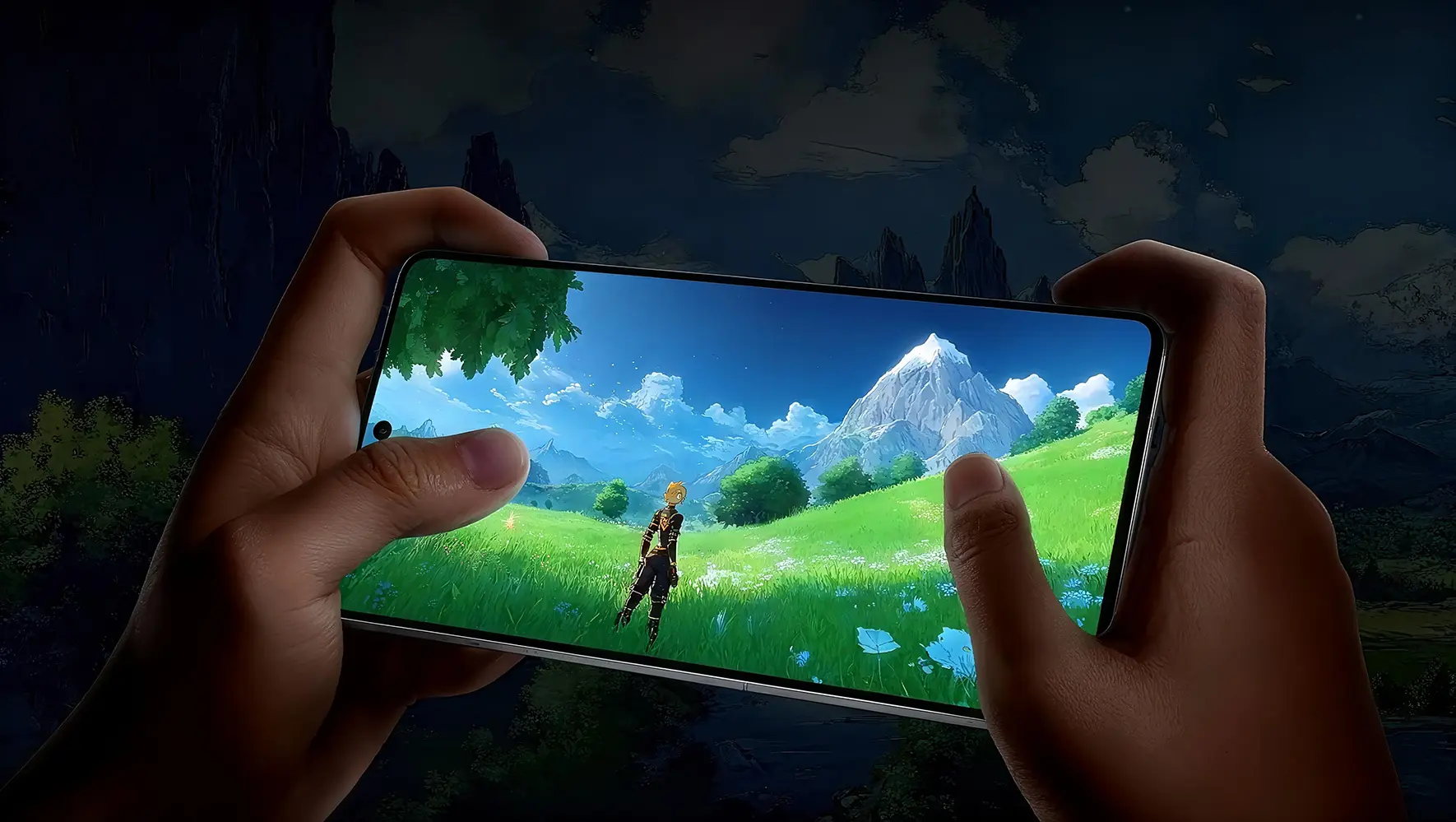
Picture quality, bandwidth and regional licensing all shape playback. Check your viewing entitlement, choose a sensible resolution and test a short clip before a longer session.


EVERYDAY DECISIONS
Prioritize the indicators that matter for your meeting, playback or game.
Match the installer to your operating system and processor before running it.
A unique password and a trusted installer are practical security foundations.
Complete a brief connection check before committing to a longer task.
Change one condition at a time when investigating inconsistent performance.
A PRACTICAL START
Begin with the automatic connection option available in the QuickQ app. If results differ from what you need, check your local network and compare another route without changing everything at once.
Get the installer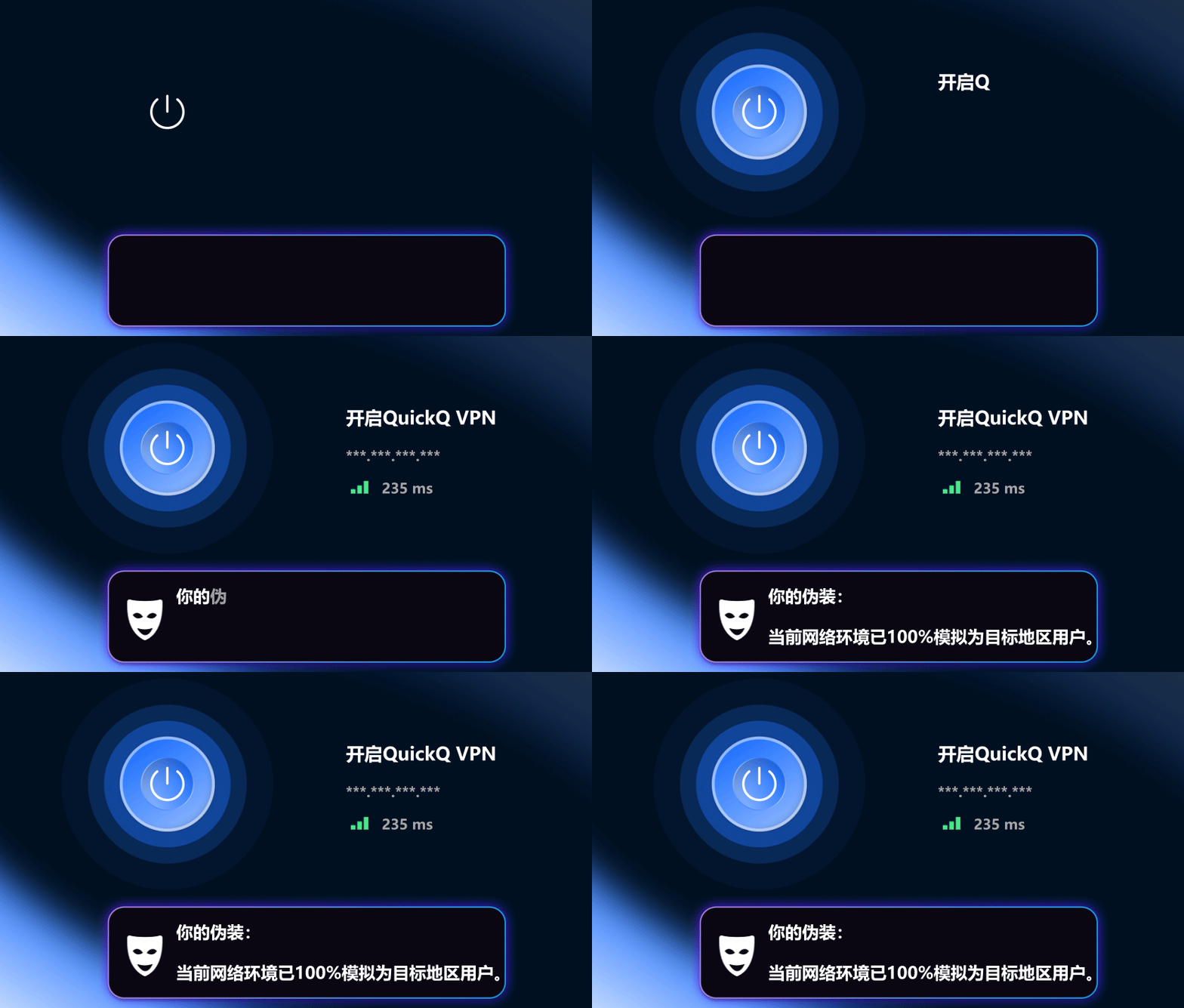
PLAN YOUR TIME
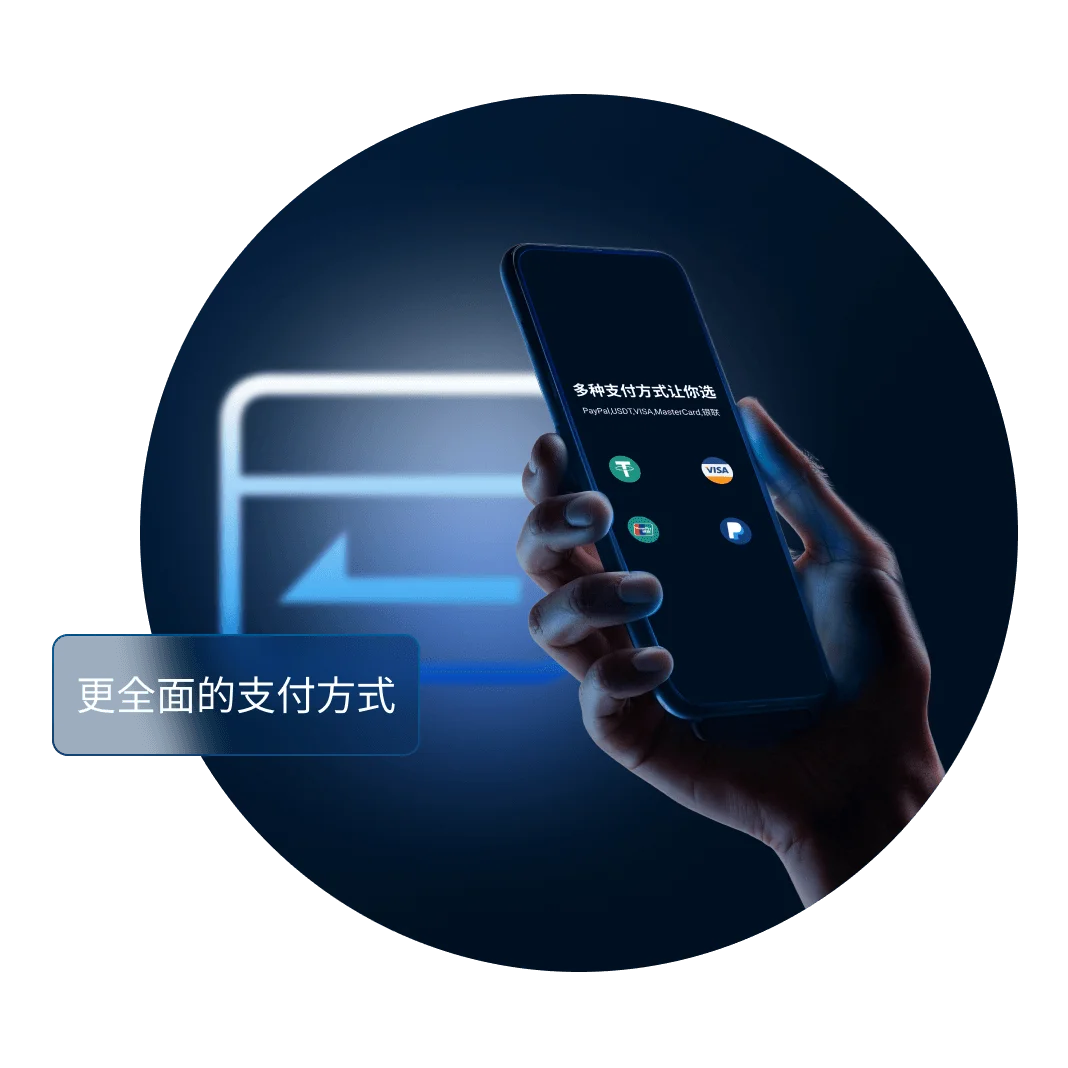
A short assignment and a year of regular use call for different choices. Review device allowances and renewal conditions before paying.
For a short assignment
$9.99
For a seasonal project
$23.99
For ongoing use
$59.99

DEVICE READINESS
Windows, macOS, Android, iOS and Linux have different installation steps. Check version information first, then follow the prompts on your own device.
SESSION CONSISTENCY
One latency figure cannot describe the whole session. Look for packet loss and fluctuations, pause large background transfers and compare routes to your game server.
TASK NOTES
Test audio and video before the call, pause background sync and prioritize continuity over a single speed test.
Read related guidanceInstall and sign in before departure. Review destination rules and local network conditions rather than searching for files on arrival.
Read related guidanceCheck each system version. Device compatibility and an account’s simultaneous-use allowance are separate questions.
Read related guidanceINSTALLATION CHECKPOINTS
Confirm the browser address is qmickq.com. Watch for spelling variations and do not enter account details in unfamiliar pop-ups.
Match your operating system and installation channel. Follow device security prompts rather than disabling protection without review.
Try browsing, audio or video and your target service separately. Rule out local network problems when results fluctuate.
Results depend on location, devices and outside services. Follow local requirements and consult purchase confirmation and in-app guidance.
PRACTICAL ANSWERS
QuickQ